When we created a BizTalk Mapping in VS2008, the compiler returned the error "line 1 colum 1 content is not allowed in prolog". Since the compiler told us that the error was detected in the very beginning (line 1 column 1), we needed a bit of time to see that actually the error was inside the document, where we had filled an element with a value although this shouldn't contain one.
So, if you get the same error message, check which fields you filled and if one of these shouldn't be filled.
Showing posts with label Mapping. Show all posts
Showing posts with label Mapping. Show all posts
Wednesday, September 7, 2011

Friday, January 16, 2009
Creating Functoids inside the XML Code of the Mapping File
I had to create a BizTalk mapping with 246 Logical Existence-Functoids, which always checked whether a source field existed and then enabled or disabled the source field. You can save quite a lot of time (and I guess manual mistakes), if you use an text editor to create the XML manually to the transformation file (the format is called BTM and it's XML).
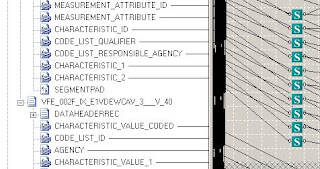
So, in case, your mapping looks like this, and you need many more functoids of that kind...
1) Open the transformation in some text editor.
2) Save the code of a new created functoid, for example:
<functoid functoidid="236" x-cell="59" y-cell="60" fid="317" name="Logical String" label=""><input-parameters></functoid>
3) Paste the code to a new file and put tabs into each line so that the code looks like this:
<functoid functoidid="[tab]236[tab]" x-cell="59" y-cell="[tab]60[tab]" fid="317" name="Logical String" label=""><input-parameters></functoid>
4) Now, copy the content to Excel and copy the lines so that the number, which should be pasted to extra columns, are increased-
5) Copy the content to a text editor, delete the tabs again and paste the code into the transformation file.
Ops! You should take care that the text editor that opens the BTM file externally doesn't change the unicode of the file.
So, in case, your mapping looks like this, and you need many more functoids of that kind...

1) Open the transformation in some text editor.
2) Save the code of a new created functoid, for example:
<functoid functoidid="236" x-cell="59" y-cell="60" fid="317" name="Logical String" label=""><input-parameters></functoid>
3) Paste the code to a new file and put tabs into each line so that the code looks like this:
<functoid functoidid="[tab]236[tab]" x-cell="59" y-cell="[tab]60[tab]" fid="317" name="Logical String" label=""><input-parameters></functoid>
4) Now, copy the content to Excel and copy the lines so that the number, which should be pasted to extra columns, are increased-
5) Copy the content to a text editor, delete the tabs again and paste the code into the transformation file.
Ops! You should take care that the text editor that opens the BTM file externally doesn't change the unicode of the file.
Subscribe to:
Posts (Atom)